Trading
Futures Curve: every expiry of a future on one chart
See every listed expiry of one futures market on a single curve, beside a table of its contracts, and the spread between any two of them with its history.
Edge shows the Futures Curve to accounts that can trade futures.
What it is
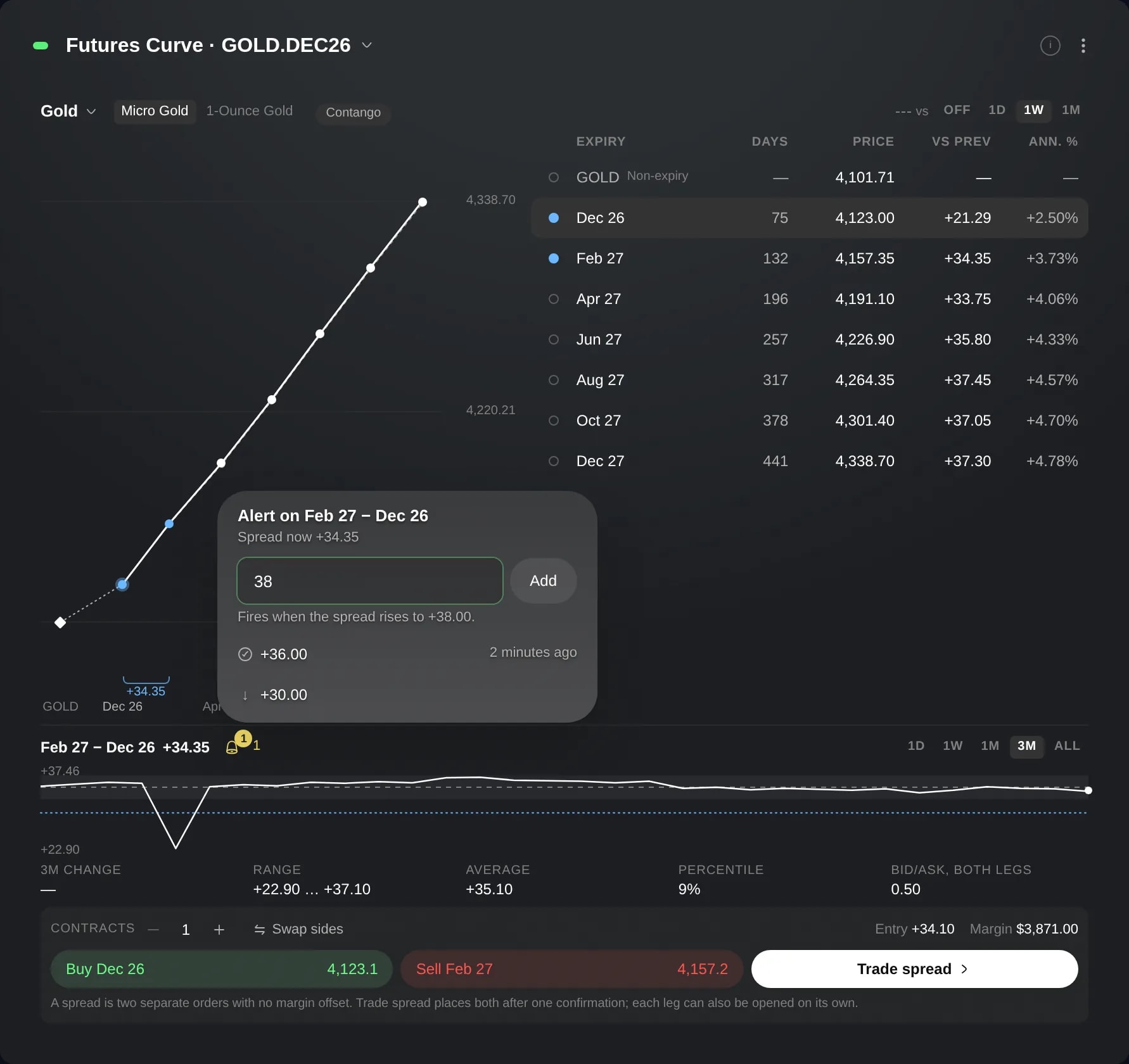
The Futures Curve puts every listed expiry of one futures market on a single chart, from the nearest contract to the furthest, beside a table of the contracts. Choose two of them and it shows the spread between them and how that spread has moved.
Reach for it to see how a market is priced across its expiries, to read the gap you would cross to roll a position into the next contract, or to follow a calendar spread.
How to use it
Click the + button at the bottom of the sidebar and choose Add widget.
Type Futures Curve in Search for widget, or open Markets, and click the Futures Curve card. It joins the open layout.
The curve shows the market of its link group's instrument, a contract or a non-expiry instrument such as Gold, or, when the group has none, the first market with futures listed. Click the market's name at the top left to choose another; the rest of a linked group moves to that market too. Where a market lists two contract sizes, such as Micro Gold and 1-Ounce Gold, choose one beside the name.
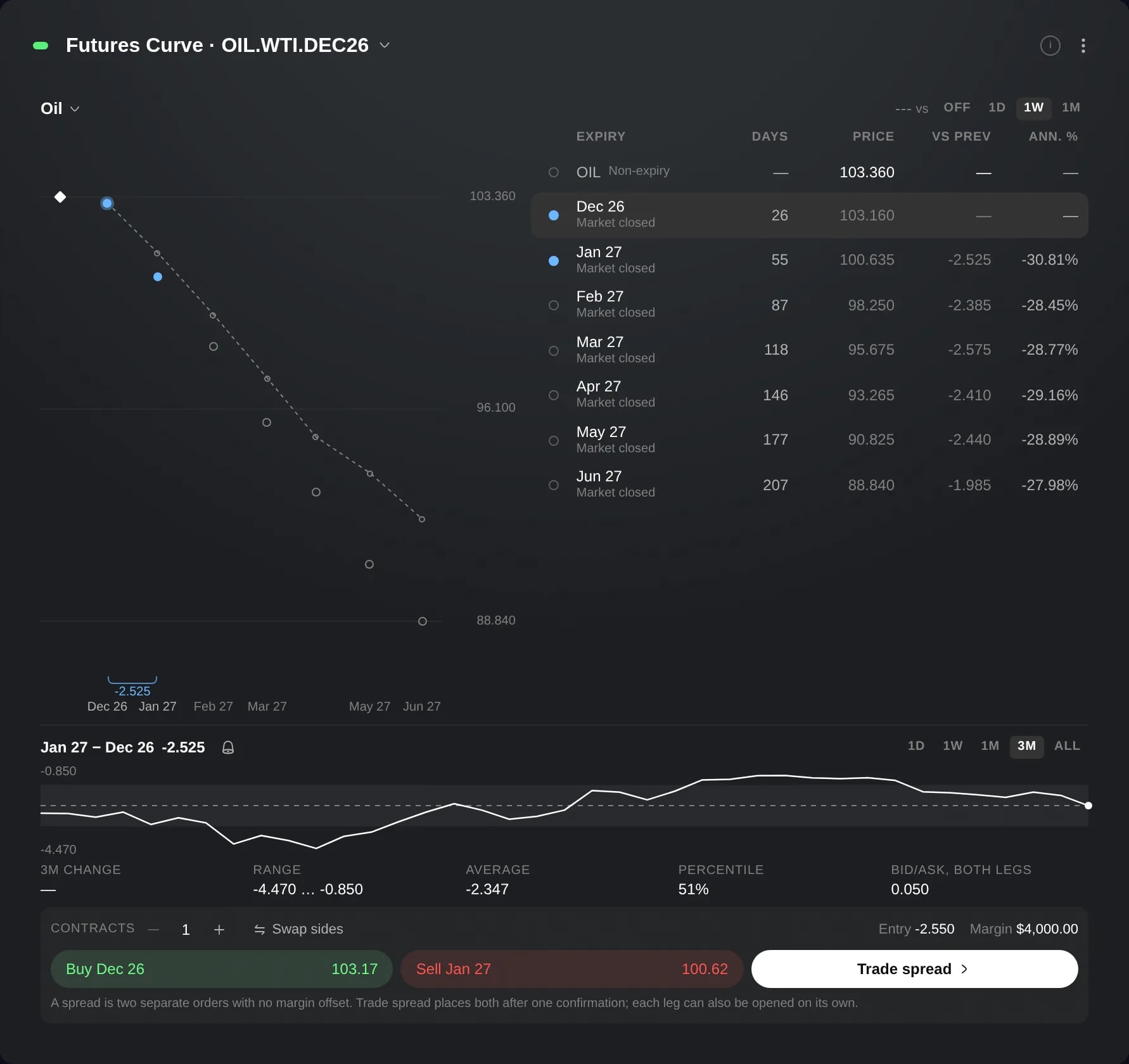
The chart places each contract by the time left to its expiry, with the non-expiry instrument as a diamond where there is one. The table lists the same points nearest first, with Price, Vs prev, Ann. % and, in a wide enough widget, Days. Point at a dot for its figures, or at the i at the top right for what each one means.
Beside vs at the top right, choose 1D, 1W or 1M to draw the curve at that earlier close as a dashed line, moved to meet today's first contract, or Off to hide it. It shows whether the gaps between contracts widened or narrowed, not how far prices moved.
Choose two contracts with the round toggles at the start of their rows; the two nearest are chosen to begin with. The panel under the chart names the pair, later contract first, with its spread now, its history over 1D, 1W, 1M, 3M or All, and the period's change, range, average and percentile.
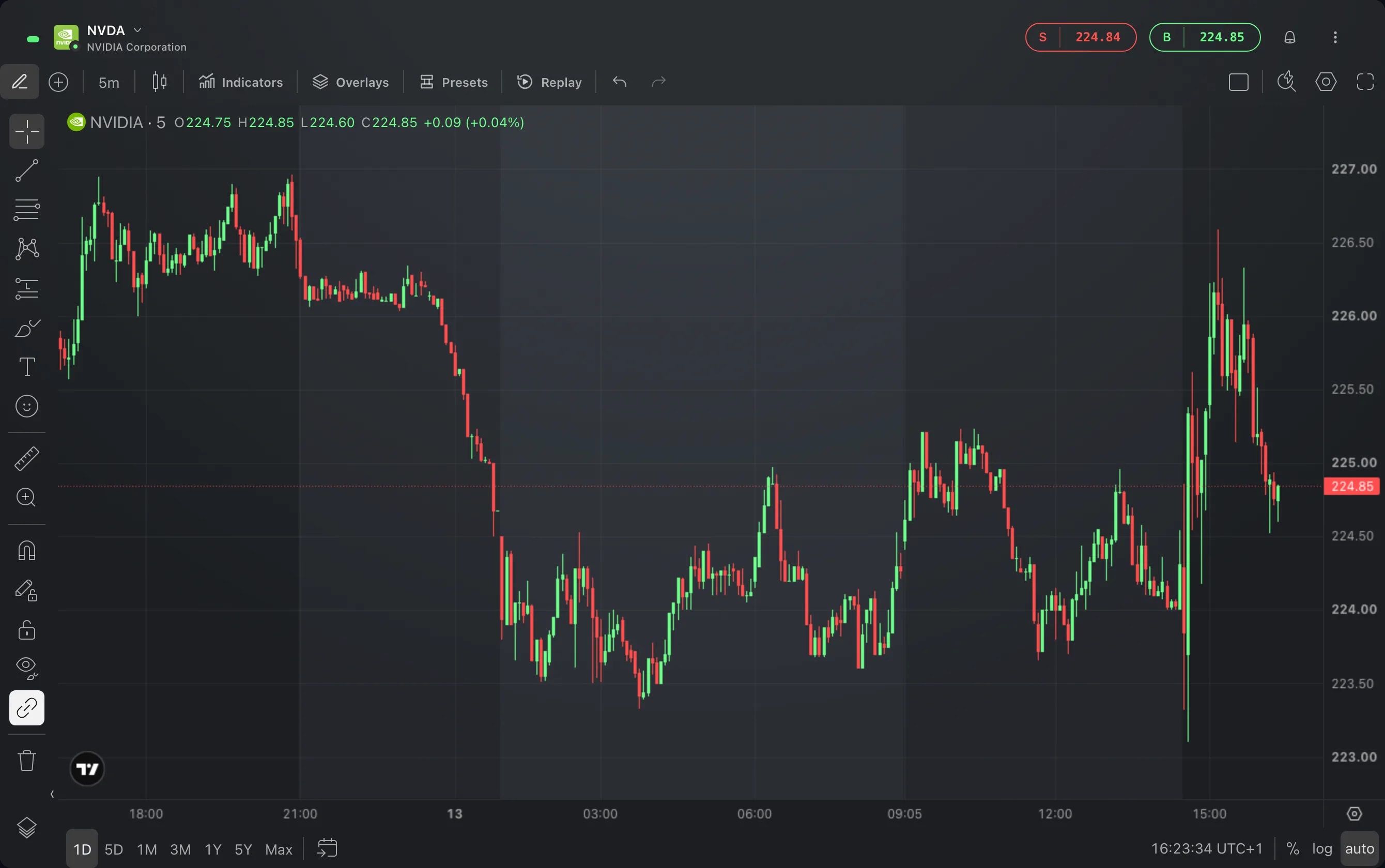
Click a contract's row to send it to the link group. A chart or an Order Ticket in the same group moves to that contract, and the curve stays on its market.
To trade the pair, see which contract it buys and which it sells (Swap sides reverses them), set Contracts and press Trade spread. That opens a review of both orders with three checks, and nothing is sent until you press Place spread, which waits for all three to pass.
Good to know
A closed contract shows its last value and is compared only with other closed prices, so figures such as Vs prev and Ann. % stay blank between it and a price that still trades.
When the curve's prices are all trading, or all closed, a chip beside the market's name can call its shape Contango, Backwardation, Flat or Mixed. Like every figure here, it describes the market and does not rate it.
A spread is two separate market orders, sent one after the other, with no margin offset between them. If the second does not go through, the first stays open and you decide what happens next.
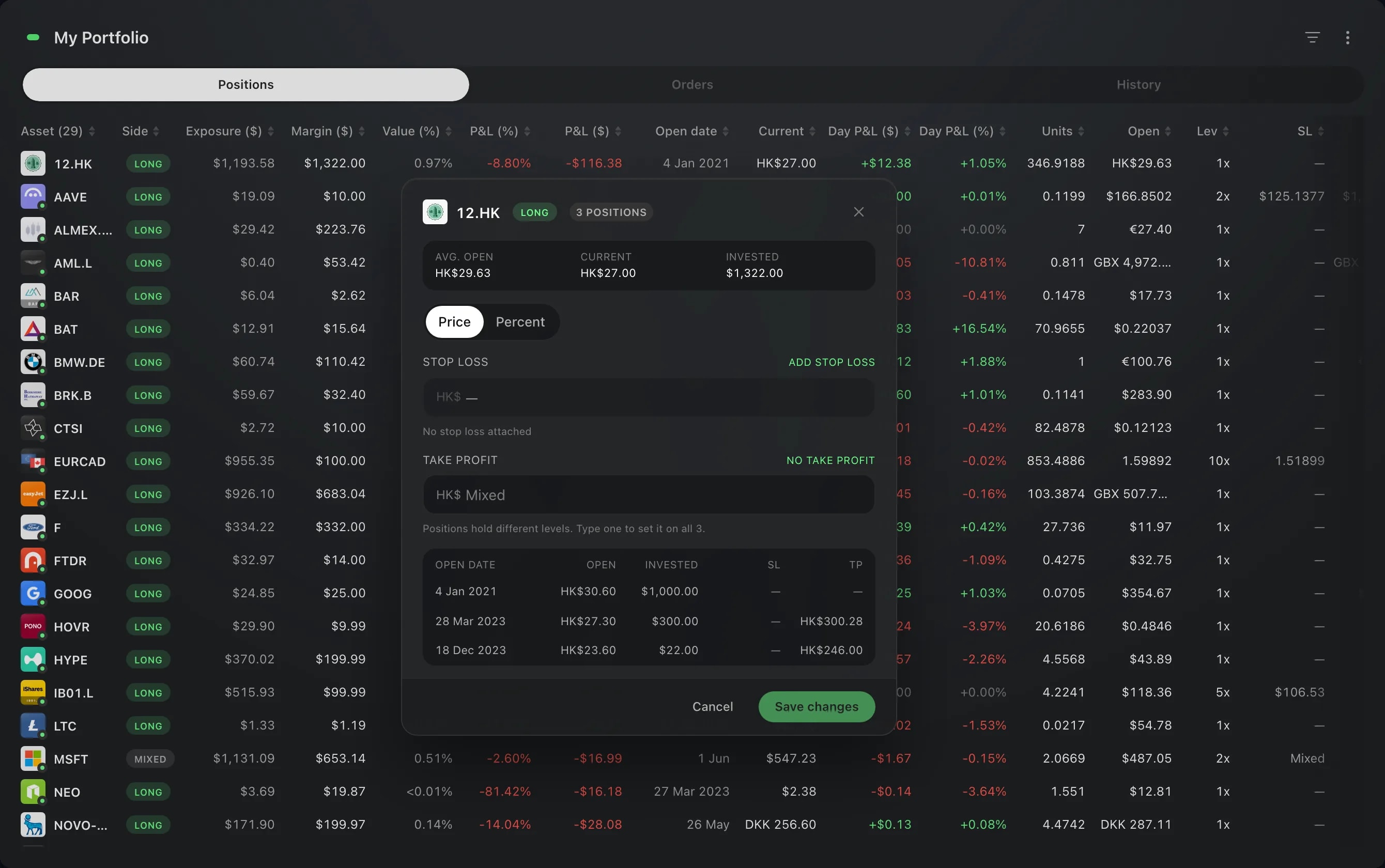
The Create Layout page offers a ready-made Futures layout: the curve, a chart, your positions and an Order Ticket, already linked.
Set the widget's link group to Unlinked to keep it on a market of your choice, whatever the rest of the group shows.
The bell beside the pair's name sets alerts on the spread between its two contracts.
Screens are from a Demo account. The instruments and prices in them are illustrative.