Tori
Expand Tori across the canvas
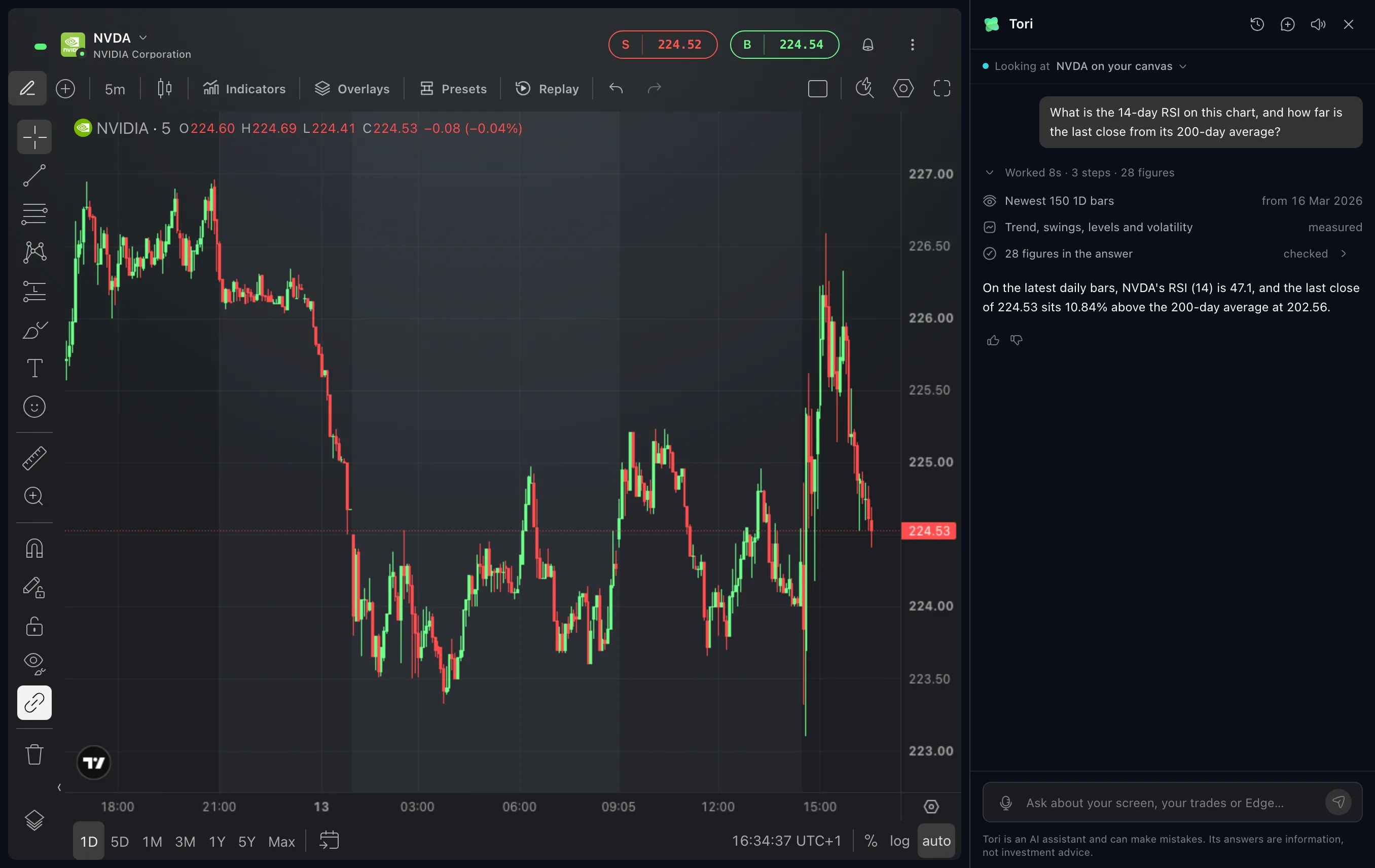
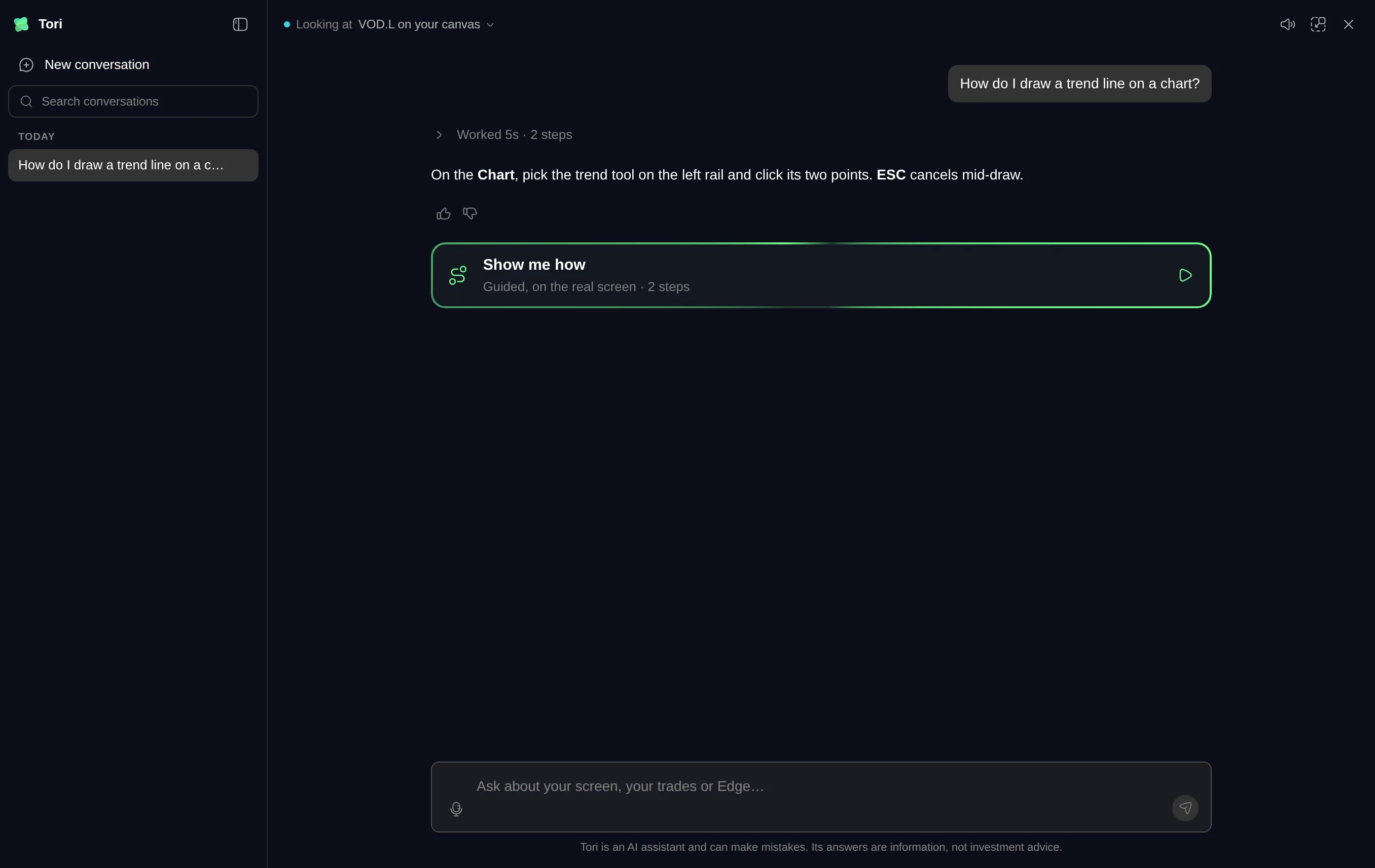
Tori can now fill the canvas area, with your conversations listed beside it to search, pin, rename and delete. Your layout waits underneath until Tori docks again.
What it is
Tori, Edge’s assistant, opens docked beside your canvas. It can now fill the canvas area instead: click Expand Tori and the conversation reads in a wide column, with your conversations listed beside it to search, pin, rename or delete. Edge’s sidebar and the status bar stay where they are.
Reach for it when a conversation runs long, when you want to go back to something Tori told you last week, or when you want to tidy up what you have asked. Your layout stays underneath as you left it, and it is back the moment Tori docks.
How to use it
Open Tori from the bar at the bottom of Edge, or press Alt+T (⌥T on a Mac). It opens docked beside your canvas.
Click Expand Tori at the top of the panel, the button between the speaker and the ✕. You can also press Alt+Shift+T (⌥⇧T on a Mac), or pick Expand Tori in the command palette (Ctrl+K, or ⌘K on a Mac). When Tori is closed, Alt+Shift+T opens it expanded straight away.
Your conversations are listed on the left, grouped by the day you last used them: Today, Yesterday, the previous 7 and 30 days, then by month. Click one to open it, or New conversation to start another. A new conversation is listed as soon as you ask, and after Tori’s first answer it gets a short name written from your question.
Type in Search conversations to find one by its name or by the widget it was about.
Point at a conversation and open its ⋯ menu to Pin it, Rename it or Delete conversation. Pinned conversations stay at the top of the list. For a few seconds after a delete, Undo brings the conversation back.
To see your layout again, click Dock beside the canvas where Expand Tori was. Or click anywhere outside the message box and press Esc or Alt+Shift+T: while the cursor is in a text box, those keys are left to it. Tori docks beside the canvas with the same conversation open.
Good to know
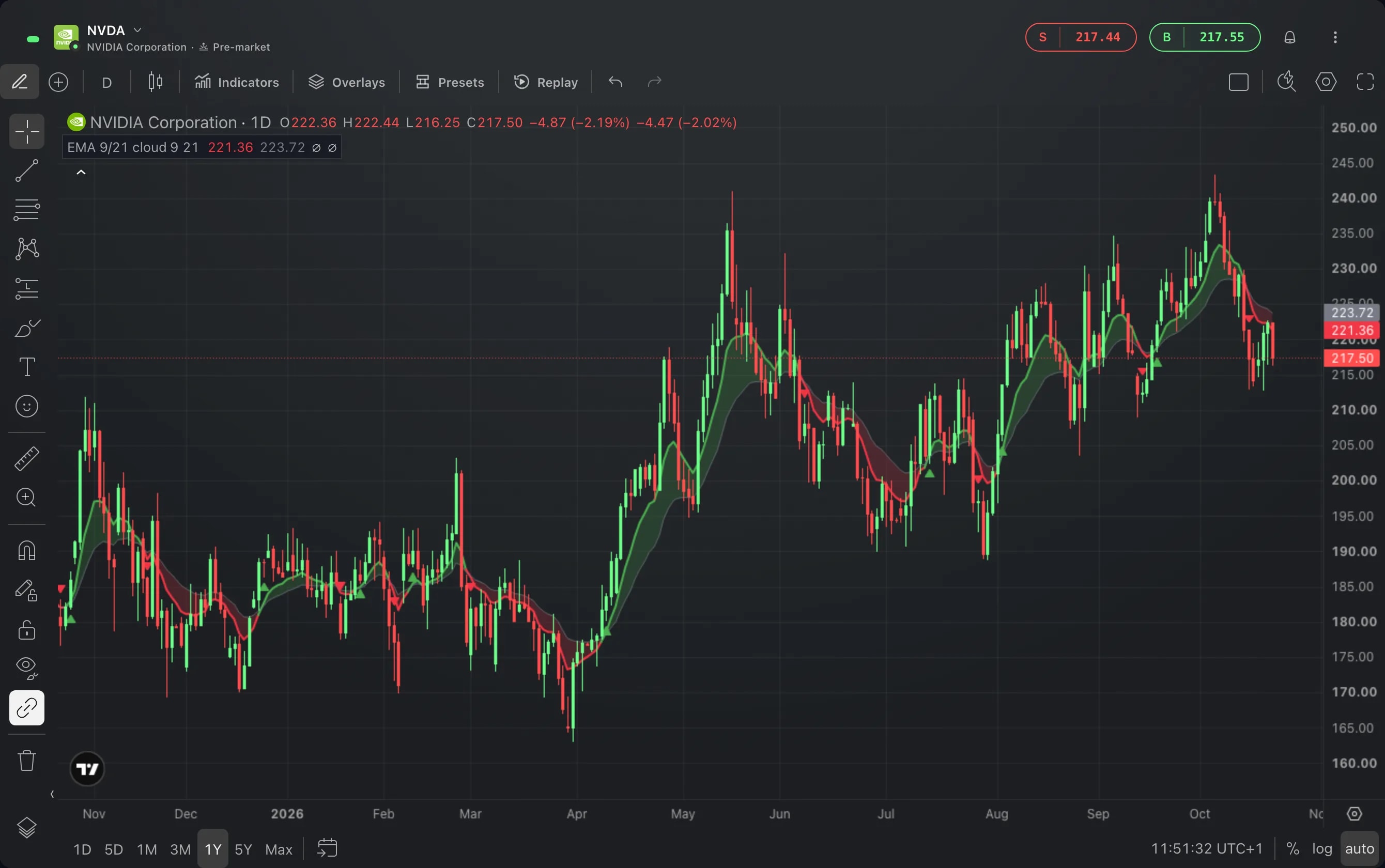
Tori docks by itself when it needs to show you the canvas, for example when you pick another layout, or when you ask about a chart and it previews the levels it found on it.
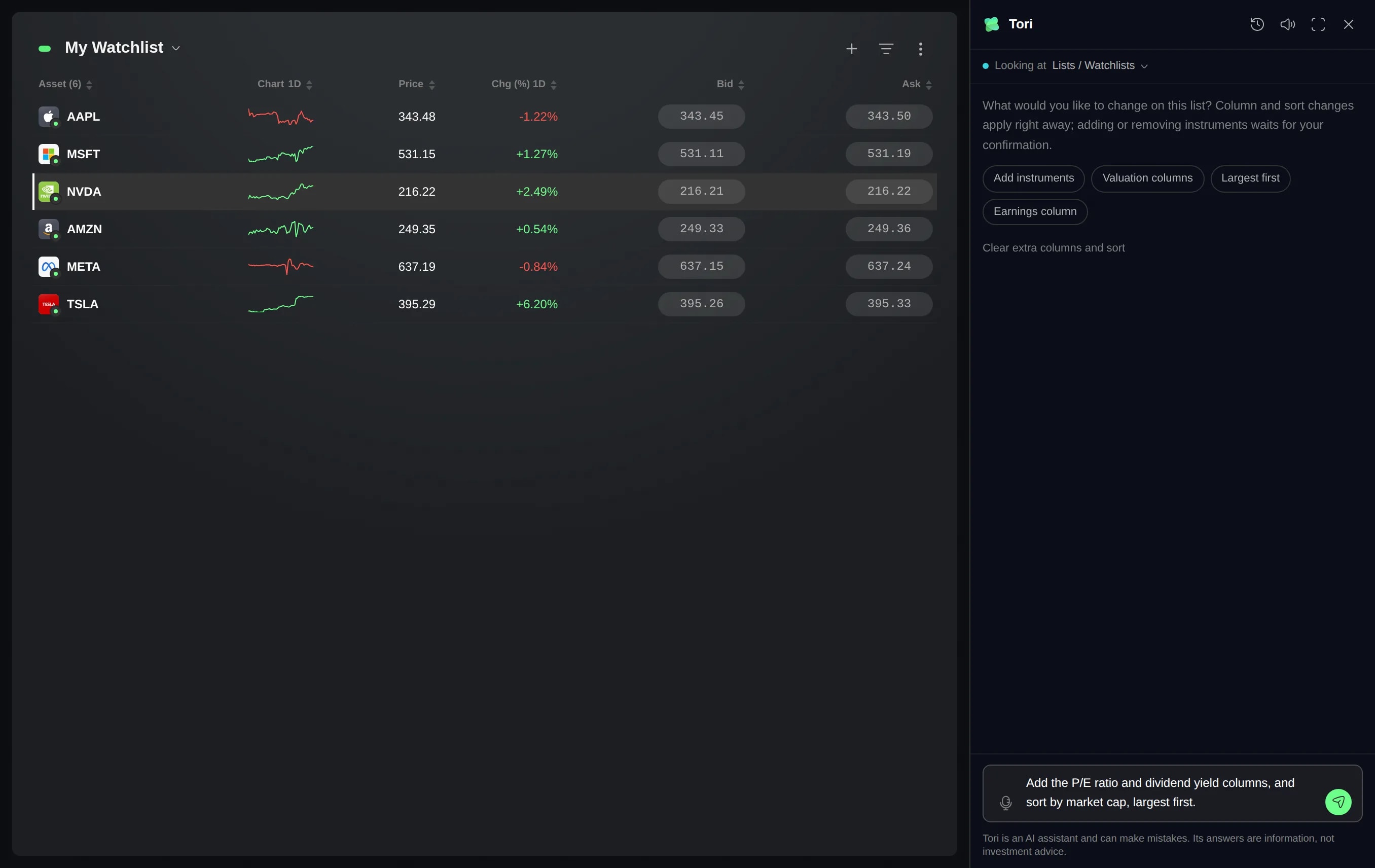
Ask for a change to a widget while Tori is expanded and the change is made at once. The list of changes under the answer offers Undo, and Show, which docks Tori and enlarges that widget beside it. Esc puts the widget back in your layout.
Expanded lasts until you close Tori. After that, the bar at the bottom and Alt+T open it docked again; Alt+Shift+T opens it expanded.
Pins and names are saved with your account: a pinned conversation is still at the top after you reload Edge, and a name you give a conversation stays.
In a narrow window the list starts hidden. Show conversations, at the top left of Tori, brings it out, and Hide conversations puts it away.
Screens are from a Demo account. The instruments and prices in them are illustrative.