Tori
Edit widgets with Tori
Say what you want and Tori changes the chart, watchlist, Screener or portfolio table you opened it from. A list's instruments and your positions change only once you confirm.
What it is
Edit with Tori is the first item in the three-dot menu of a chart, a watchlist, the Screener, My Portfolio and the tables of your positions, pending orders and trade history. Choose it, say in your own words what you want, and Tori makes the change on the widget itself: a table's columns, sort and filters, a chart's indicators and interval, and, once you confirm, the instruments on a list.
Reach for it when a change would take several trips through menus, or when you know what you want to see but not where the setting is. One sentence can hold several changes, such as two new columns and a sort by a third.
Edit with Tori expands the widget and opens Tori beside it. It is the same Tori, in the same conversation, that the Tori button in the status bar opens, and the line under its header names the widget it is looking at.
How to use it
In a Watchlists widget, open the three-dot menu at the top right.
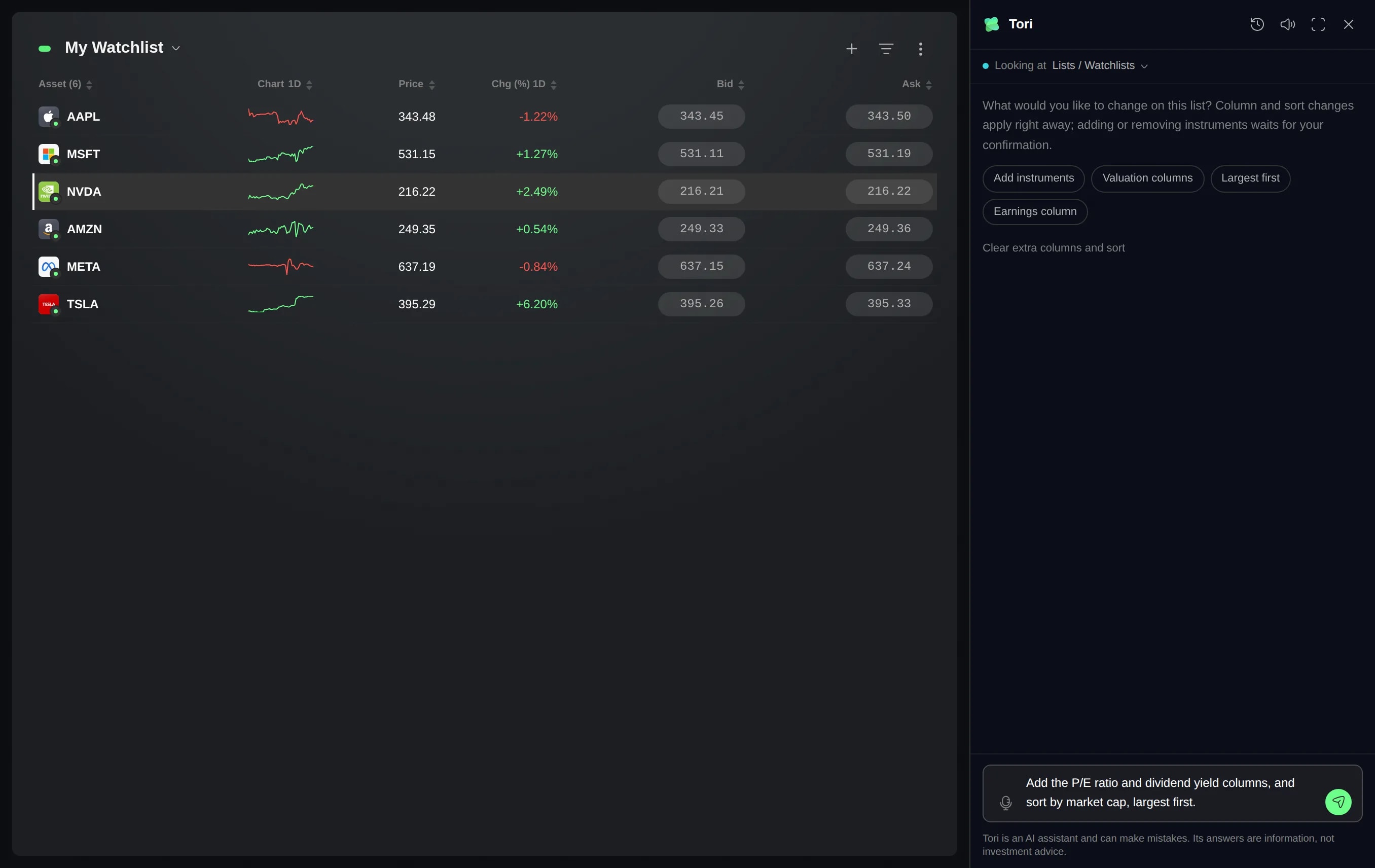
Choose Edit with Tori, the first item. The list expands, Tori opens beside it with the cursor in its message box, and it suggests starting points such as Valuation columns and Largest first.
Describe the change and send it, for example “Add the P/E ratio and dividend yield columns, and sort by market cap, largest first.” Column and sort changes apply as soon as Tori answers. Under the answer, Changed lists each one, and Undo beside that heading takes them all back.
Ask to add or remove instruments, such as “Add Coca-Cola and remove Tesla.” Tori finds each instrument and proposes the change: a Proposed changes card above the message box lists what would be added and removed. The list stays as it is until you press Apply, and Discard drops the proposal.
Undo is on Tori's newest answer for each widget and takes back everything that answer changed. To go back further, point at one of your earlier messages and choose Rewind to here: the conversation, and the columns and sort Tori set after it, return to where they were before that message.
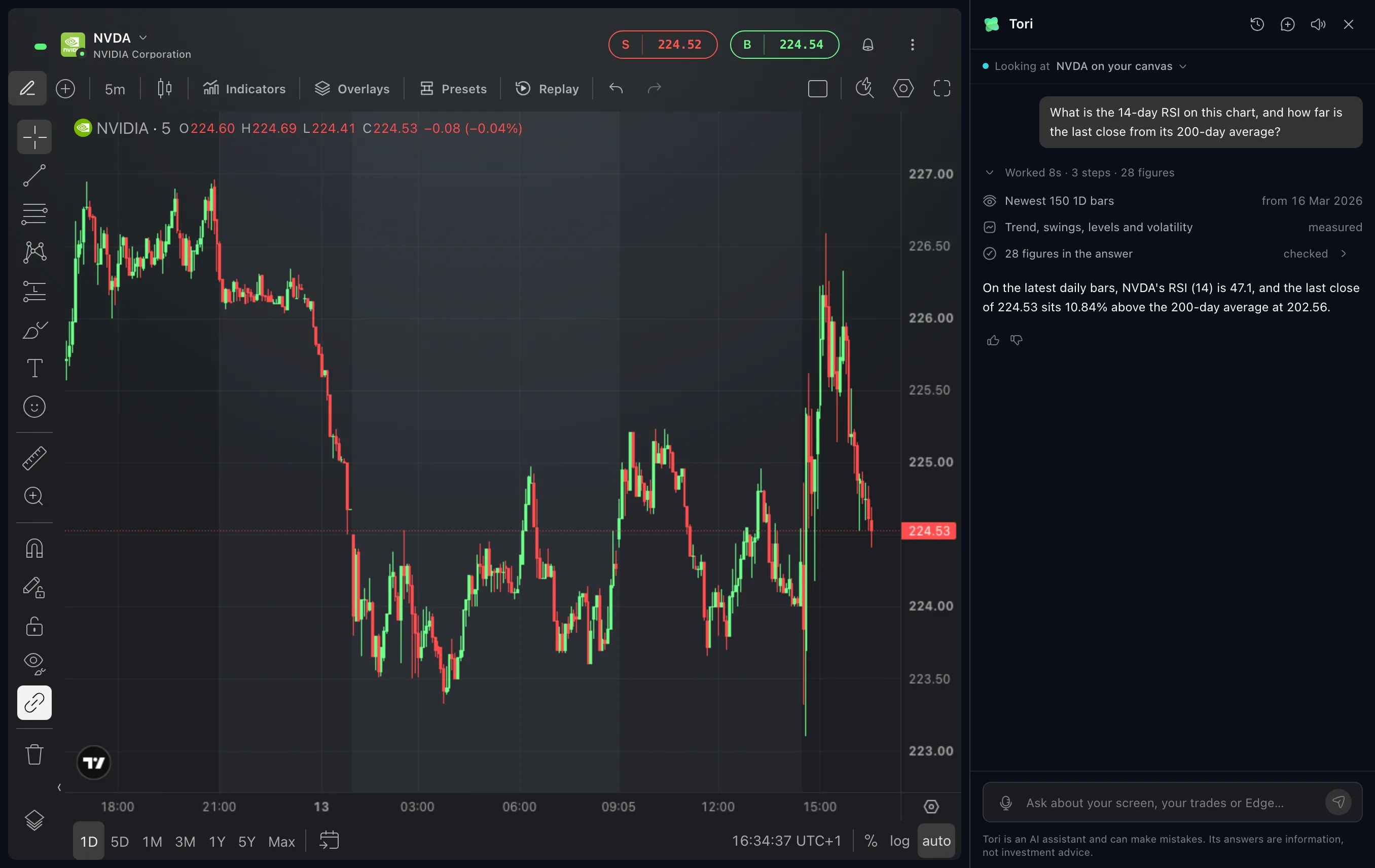
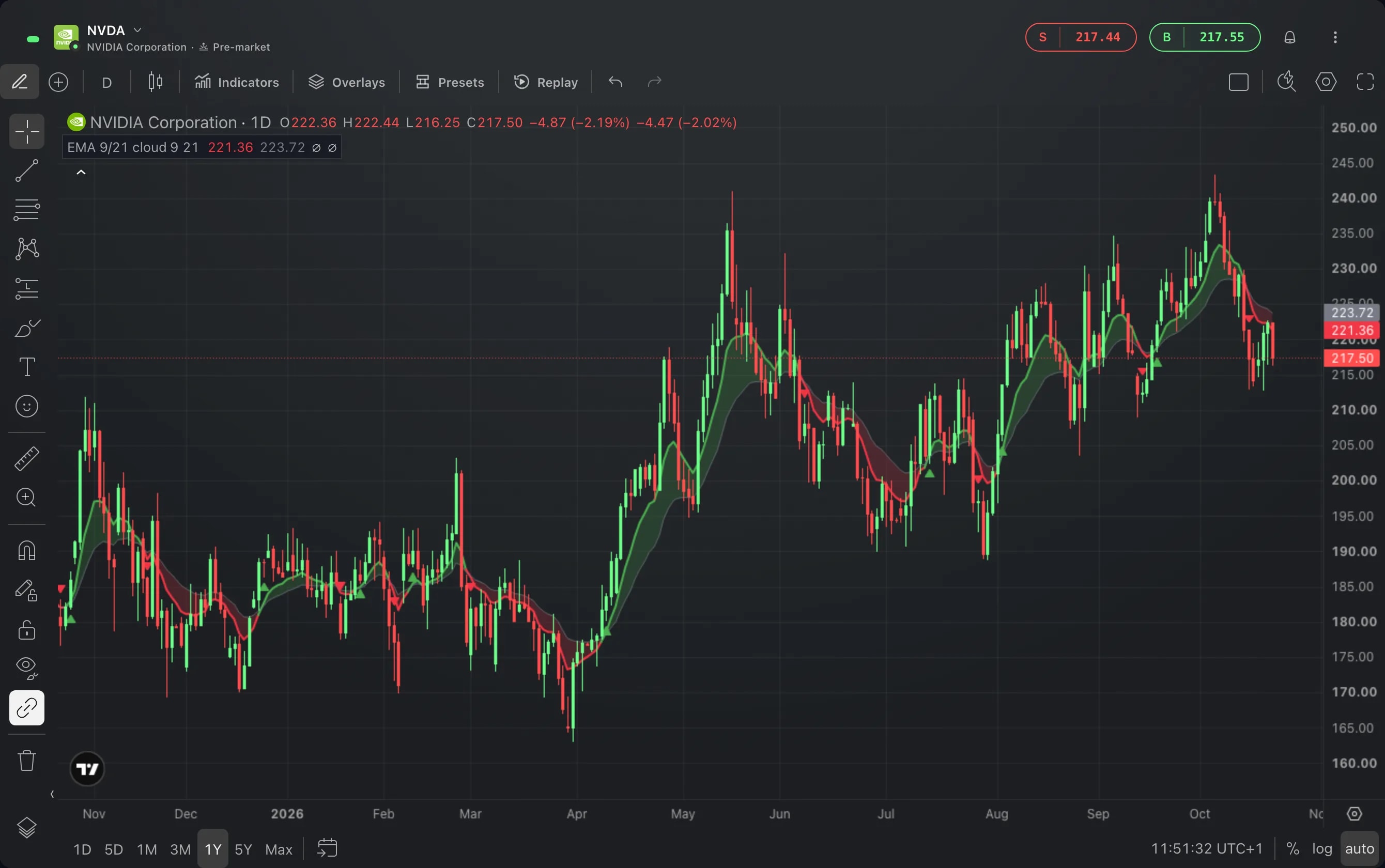
The other widgets work the same way. On a chart, ask for indicators or an interval, and each change lands on the live chart. In the Screener, Tori proposes a screen with its criteria, rank and columns, and your results change only when you press Apply. In the portfolio tables, columns, sort and filters change at once.
Good to know
Choosing Edit with Tori on another widget points the same conversation there, and a line in the conversation marks the switch. To point Tori elsewhere without the menu, click the line under its header and pick your canvas or another widget on the layout.
Instruments you apply are added to or removed from the list on your etoro account, so Undo and Rewind to here do not take them back. To reverse an addition, remove the instrument from the list, or ask Tori to remove it and press Apply.
Tori never trades. Asked to close positions, or to change their stop loss or take profit, it opens a review dialog for exactly the positions you named, and nothing changes until you confirm there. Copied positions cannot be closed or changed this way.
On a chart, the item is there when the chart shows an instrument. The chart of a person or of a Smart Portfolio does not have it.
Closing Tori leaves the widget expanded. Collapse, in the same menu, puts it back in its place on the layout.
Screens are from a Demo account. The instruments and prices in them are illustrative.