Trading
Several alerts per instrument, and alert ladders
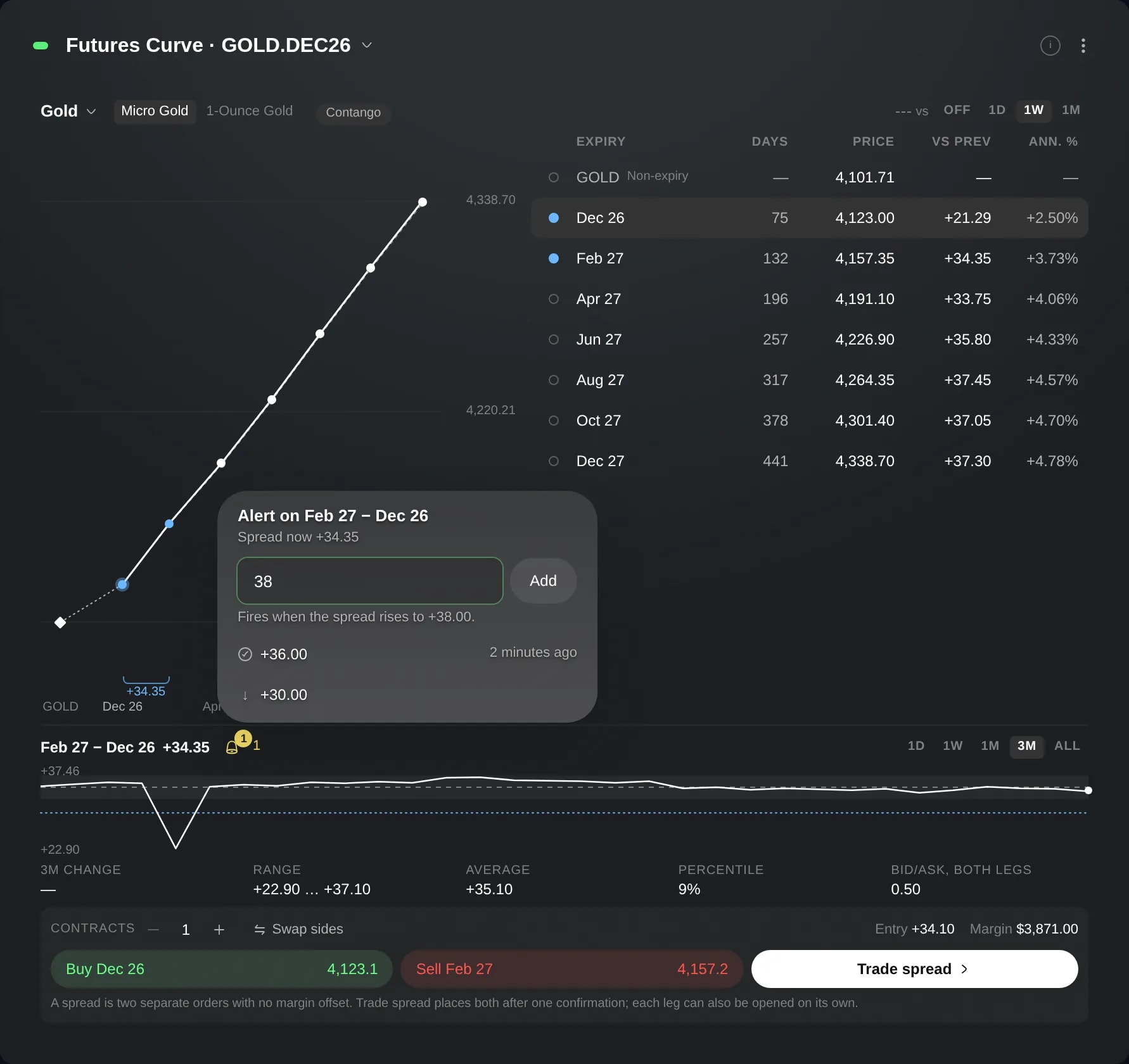
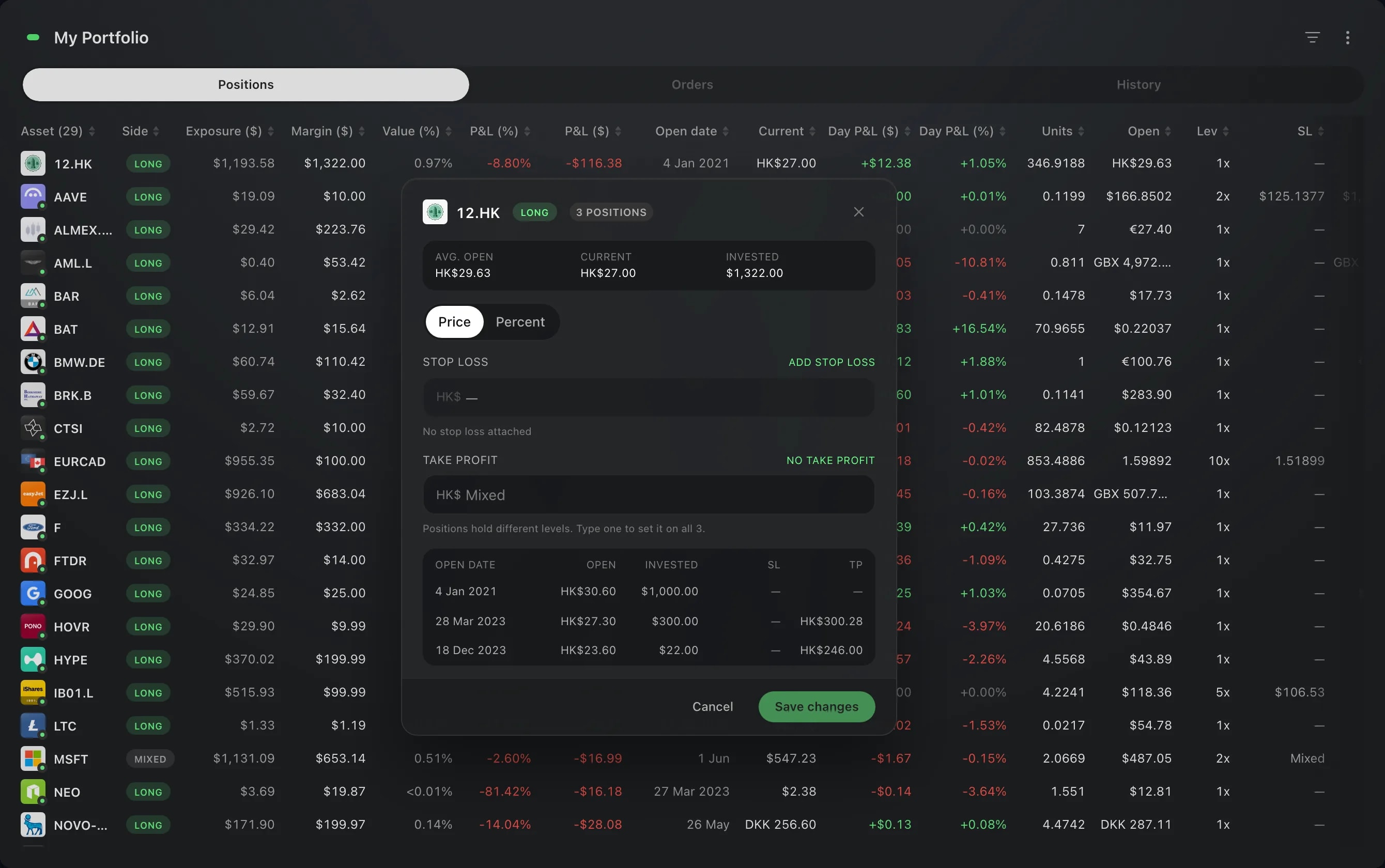
Keep several price alerts on one instrument and change each one where it is listed, or set a whole ladder of alerts at regular steps in one go.
What it is
Setting a price alert in Edge starts from the alerts you already have on that instrument: keep several, change or delete each one where it is listed, and add more. The Ladder tab sets a whole series of alerts at regular steps from a start price in one go, and previews them before anything is set.
Reach for a ladder to hear about a move at each of several levels: every 1% on the way down, or a band of levels around the price now.
How to use it
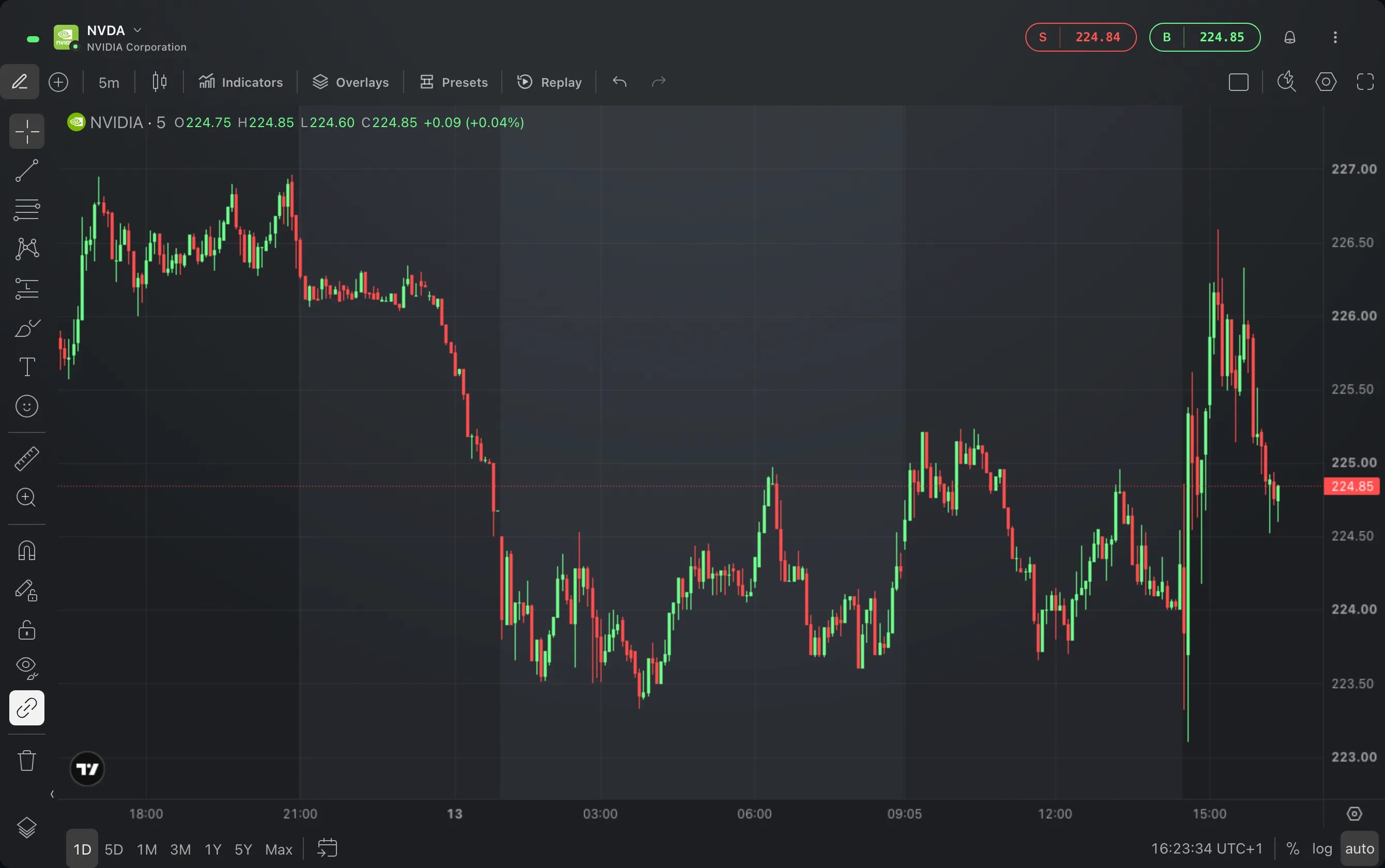
Open the instrument's alerts. On a Chart widget, click the bell at the top right, or choose Set alert in the chart's ⋮ menu. In a watchlist, right-click a row and choose Set alert. In the Alerts widget, click the + at the top, and pick the instrument if the widget is not linked to one.
The sheet opens on Simple. When the instrument has alerts, they come first, under a heading such as Active alerts on NVDA, each with its distance from the price now. Edit puts an alert's price in the field, and Update moves that alert there. The ✕ beside an alert deletes it at once.
To add an alert, type a target price, or choose % and type a move from the current price. The − and + buttons step 0.5%, and the chips set −10%, −5%, +5% or +10%. Create sets the alert and closes the sheet. A price you already have an alert at is refused with You’ve already set this alert.
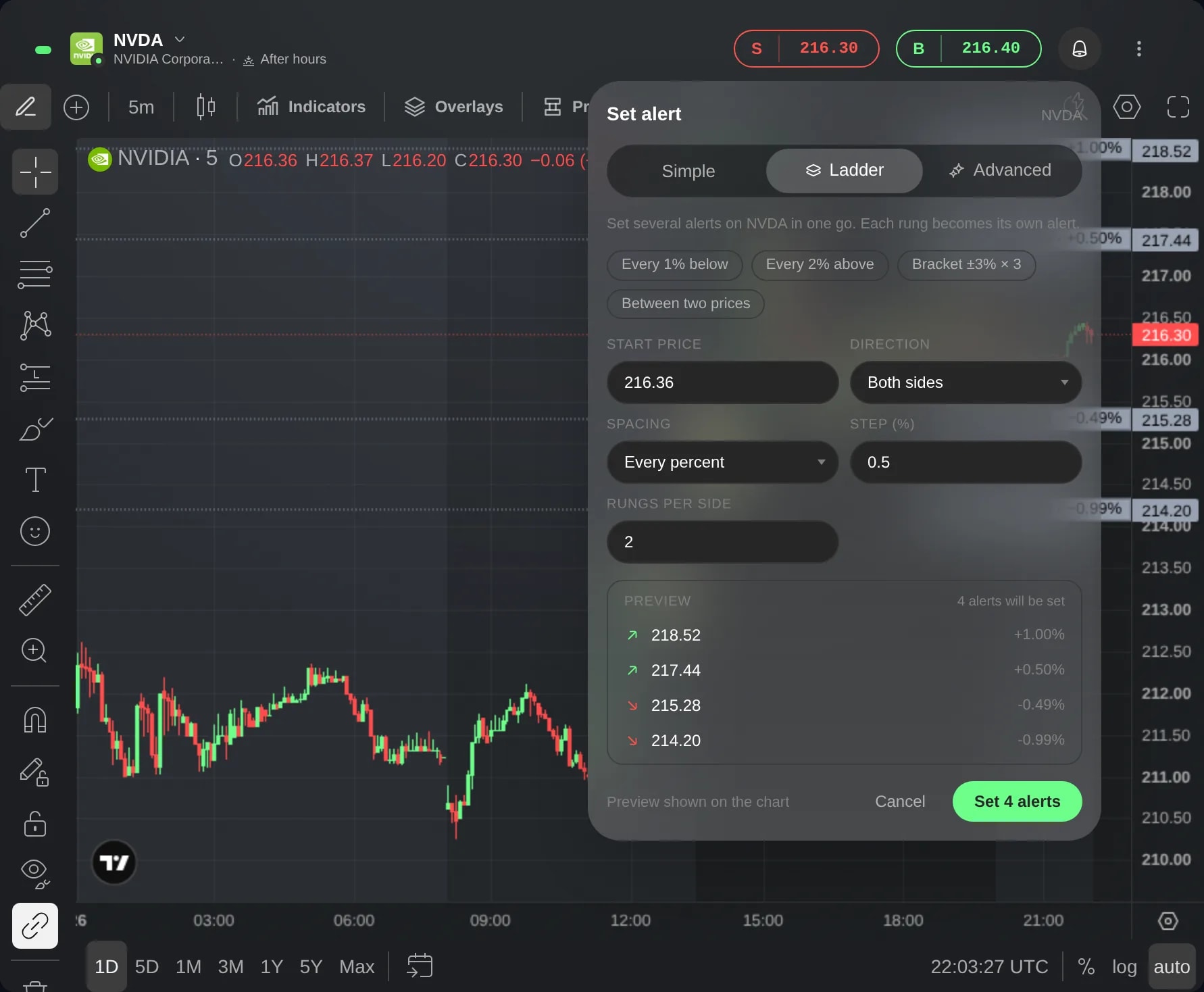
Choose the Ladder tab. Set the Start price, which begins at the current price, the Direction, the Spacing and the number of Rungs. Every percent and Every amount take a step, and Between two prices spreads the rungs evenly up to an End price. The chips at the top fill in common ladders, such as Every 1% below.
Check the preview. It names every rung with its distance from the current price, and a chart of the instrument shows each rung to be set as a dotted line. A rung where you already have an alert says Already set · skipped and is not set twice.
Choose the button that counts the alerts, such as Set 5 alerts. They are set one after another, and a notice then says how many were set, with Undo to remove the whole set.
On the chart, you can also right-click at a price and choose Alert ladder on NVDA from 216.33… to start a ladder there. Add alert on NVDA at 216.33 opens Simple at that price, and Alt+A, shown as ⌥ A, does the same at the pointer.
Good to know
Each rung is an ordinary price alert: the Alerts widget lists each one as its own row under the instrument. Tick the instrument's row there to select them all, then Delete them or Shift by % together.
Each alert fires by itself when the price reaches it and moves to the Triggered tab of the Alerts widget. The other rungs keep waiting.
Undo is only on the notice, which folds after a few seconds and then closes: point at it to bring Undo back. After that, delete alerts in the sheet or the Alerts widget.
A ladder has 2 to 20 rungs. With Both sides, the number counts each side, up to 10 above and 10 below.
When the start price puts rungs on the far side of the current price, above it on a Below ladder or below it on an Above one, the sheet warns that those rungs fire on the opposite move.
Screens are from a Demo account. The instruments and prices in them are illustrative.