App
Light theme
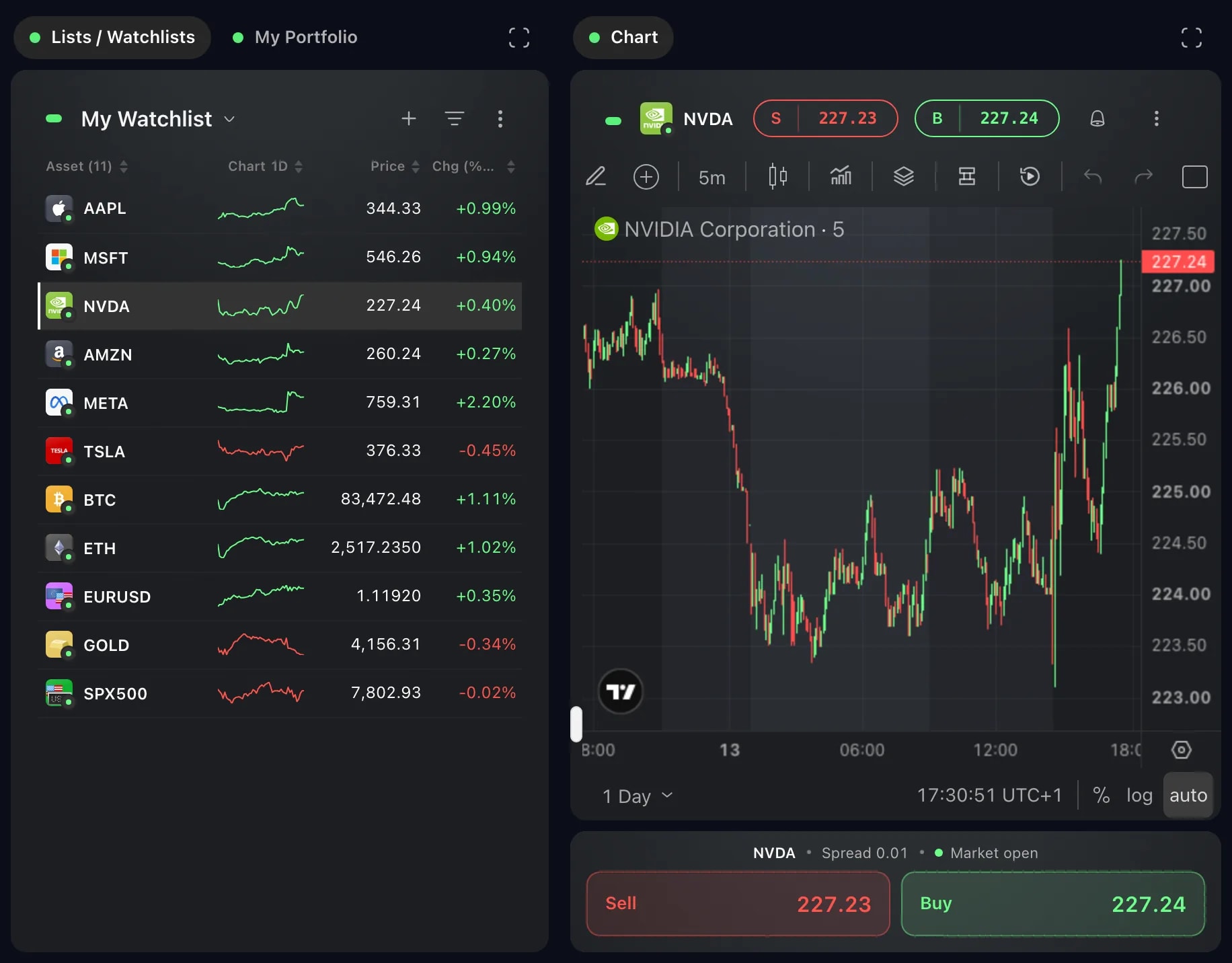
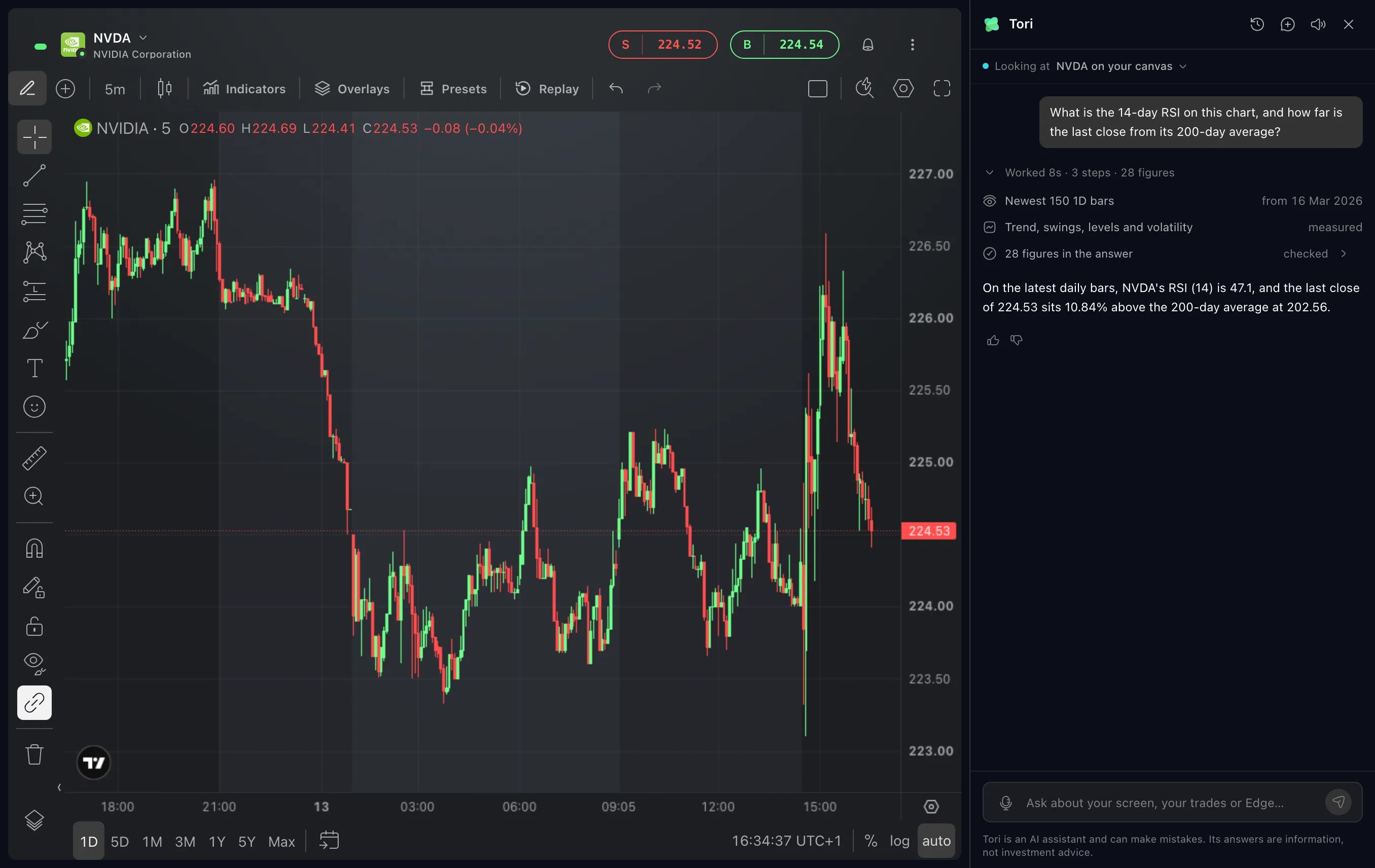
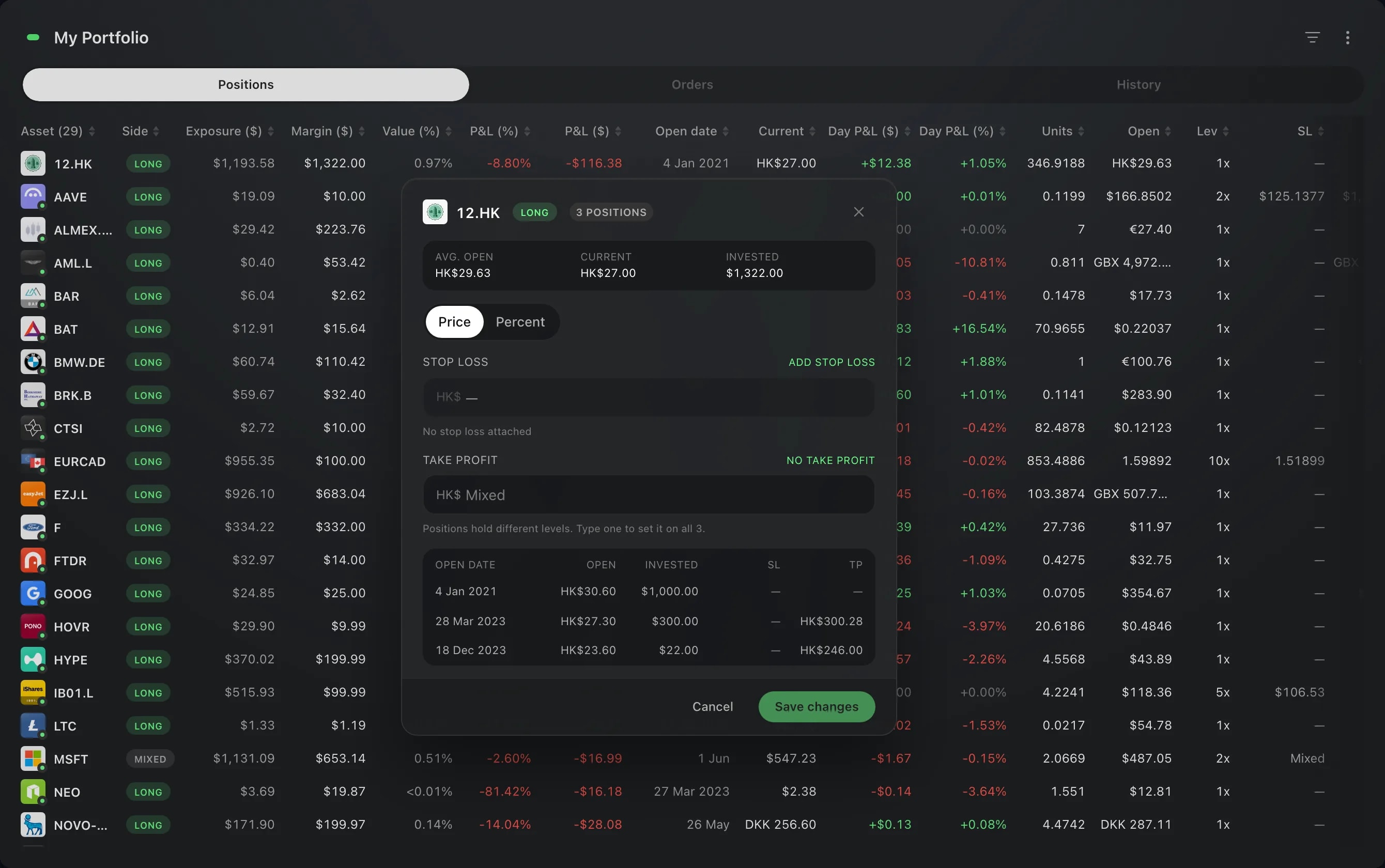
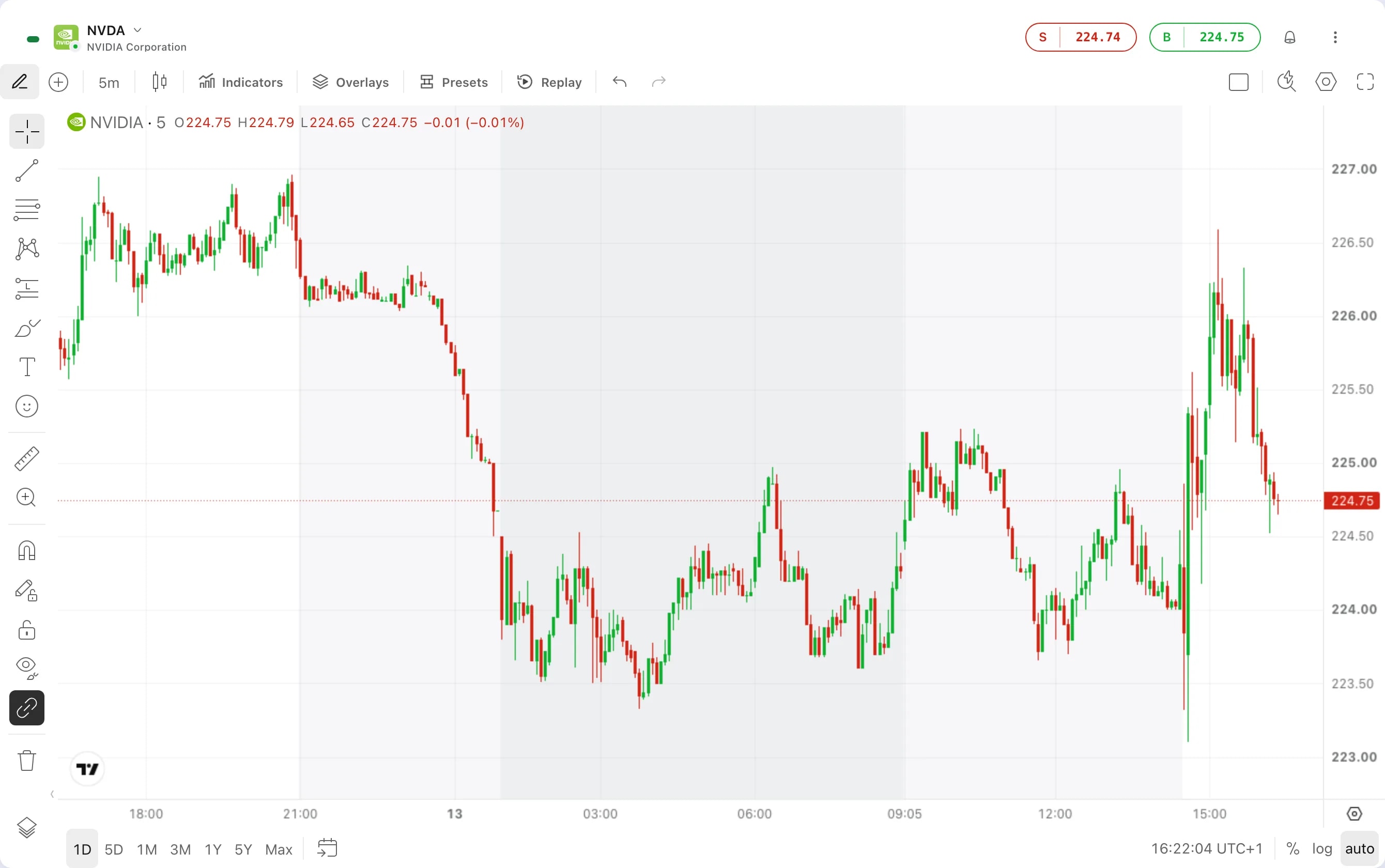
Edge now comes in light as well as dark. Choose Light, Dark or System in Settings, and the whole workspace follows, charts included.
What it is
Edge has a light theme. Until now the workspace was dark only. You can now choose between Light, Dark and System, and the choice applies to all of Edge at once: widgets, menus, dialogs and charts.
Light suits a bright room or a screen in daylight, and dark suits a dim one. System leaves the choice to your device: Edge turns light or dark when your computer does.
The theme is one setting for the whole workspace. It is not set for one layout or for one widget: every layout you have uses the same theme. It changes colours and nothing else, so your layouts, your widgets and their settings stay exactly as they are.
How to use it
Click your avatar at the top of the sidebar. The account menu opens.
Choose Settings. It opens as a panel over your workspace.
Under Display, find Themes and pick Light, Dark or System. The workspace changes as soon as you click, and Preview, above the row, shows two widgets in the theme you picked.
Choose Done to close the panel. There is nothing else to save. To go back, open the same row and pick the theme you had.
Good to know
The theme is saved to your account. It follows you to every device you open Edge on.
Edge starts in dark, and stays dark until you choose another theme. The Log In and Sign Up pages are always dark.
With System, Edge follows the appearance set on your computer, and changes with it.
Charts change with the rest of the workspace: the background, the grid and the price scale all follow the theme. A chart that you gave a background of its own, in its settings, keeps that background.
From the keyboard, open the command palette with ⌘K or Ctrl+K and type the name of the setting, Themes. It offers the themes you are not using.
The same Display section sets the text size, the density of the rows inside widgets and the gap between widgets.
Screens are from a Demo account. The instruments and prices in them are illustrative.