Layouts
A Notepad for your own notes
Add the Notepad widget to write your plan for the day, levels to watch or reminders. It saves as you type, and your notes are there on every device.
What it is
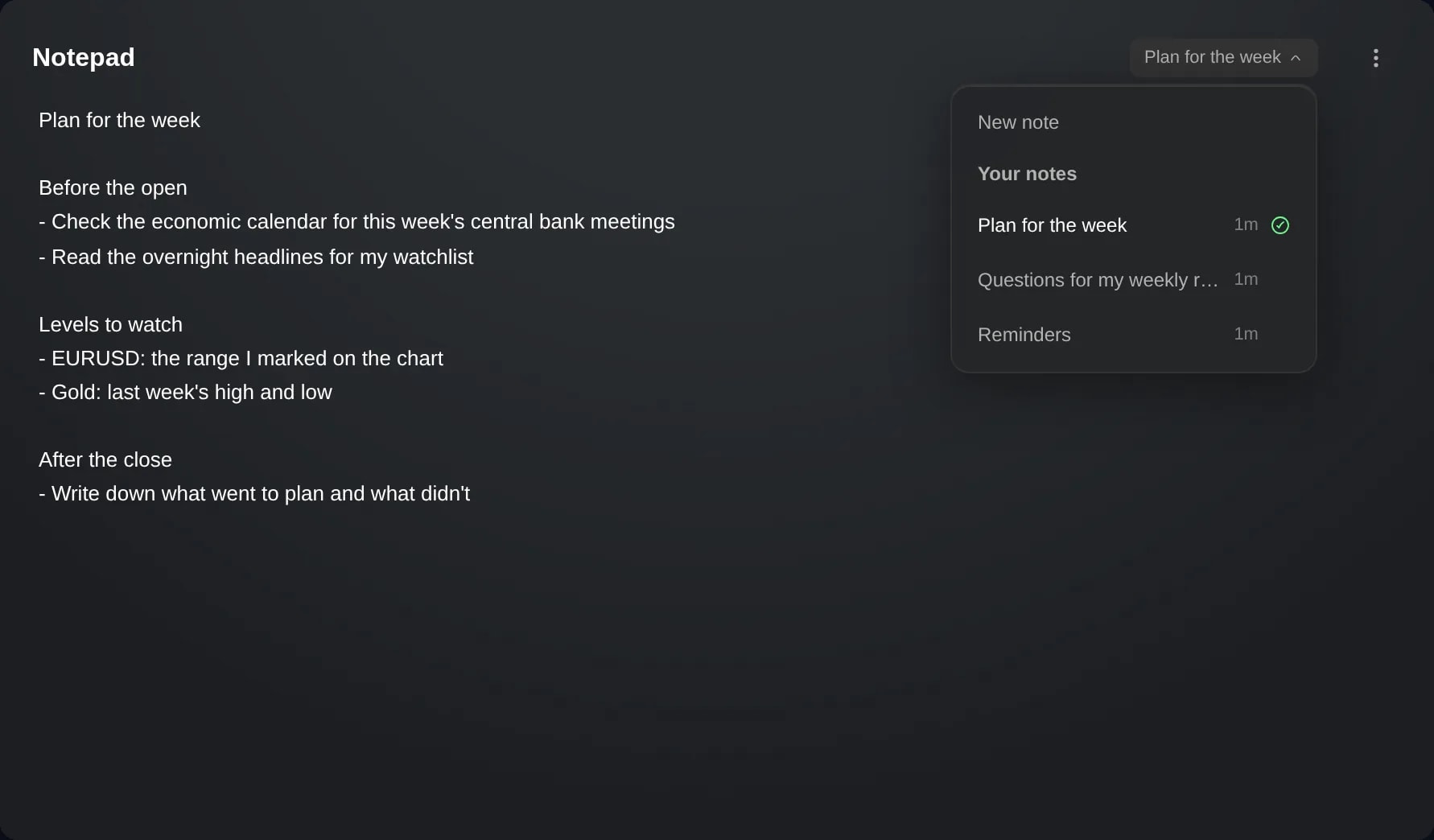
The Notepad is a widget you write your own notes in: your plan for the day, levels to watch, reminders, anything. Click into it and type. It saves as you type, and only you can see what you write.
It puts your notes where you trade, beside your charts and lists. You can keep several notes, each named after its first line, and open any of them from the widget’s header.
Your notes belong to you, not to a layout or an account. The same notes are there after a reload, on another computer, and whether your real account, your virtual portfolio or a sub-account is active.
How to use it
Click the + at the bottom of the sidebar and choose Add widget.
Search for Notepad, or find it under Portfolio, and click its card. Close the widget picker: the Notepad is on your layout, with an empty note.
Click into the Notepad and type. It saves a moment after you pause, when you click away, and at once when you press Ctrl+S (Cmd+S on a Mac). Once your typing is saved, a check appears beside the note’s name in the header.
To start another note, click the note’s name in the header and choose New note. The same list shows every note you keep under Your notes, the last edited first, each with the time it was last edited. Pick one to open it.
To delete the open note, open the widget’s ⋮ menu and choose Delete note. The Notepad asks whether to delete it on every device: choose Delete, or Keep note to leave it. After a delete, the Notepad opens an empty new note.
Good to know
Removing a Notepad from your layout deletes none of your notes: any Notepad can open them again from the list in its header. A note is deleted only by Delete note, or when you clear its text. A note left with nothing but spaces or blank lines is deleted too.
Each Notepad shows one note. To see two notes side by side, add a second Notepad and pick the other note in its header.
If the same note was changed on another device while you were typing, the Notepad shows the other version and saves nothing until you choose Keep my version or Use the other version. If the note was deleted there, the choices are Discard my version and Keep my version.
When the widget is too narrow to show the note’s name beside its title, the list of notes moves into the ⋮ menu.
A note is plain text of up to 10,000 characters, and a counter appears when 500 are left. The Notepad keeps up to 500 notes.
Notes on a single position, closed trade or trading day are not in the Notepad. They belong to that account’s trades, and the Notepad’s notes do not appear on trades either.
Screens are from a Demo account. The instruments and prices in them are illustrative.